
Songs via Spotify
Add an audio block and choose music search to look through Spotify. Pick a track to load it into the built-in player with Spotify’s official embedded player, so you can audition it before it goes on the board. Hit Add to block when it is the right one. Great for: moodboards with a theme song, video treatments with reference tracks, planning event playlists alongside layouts.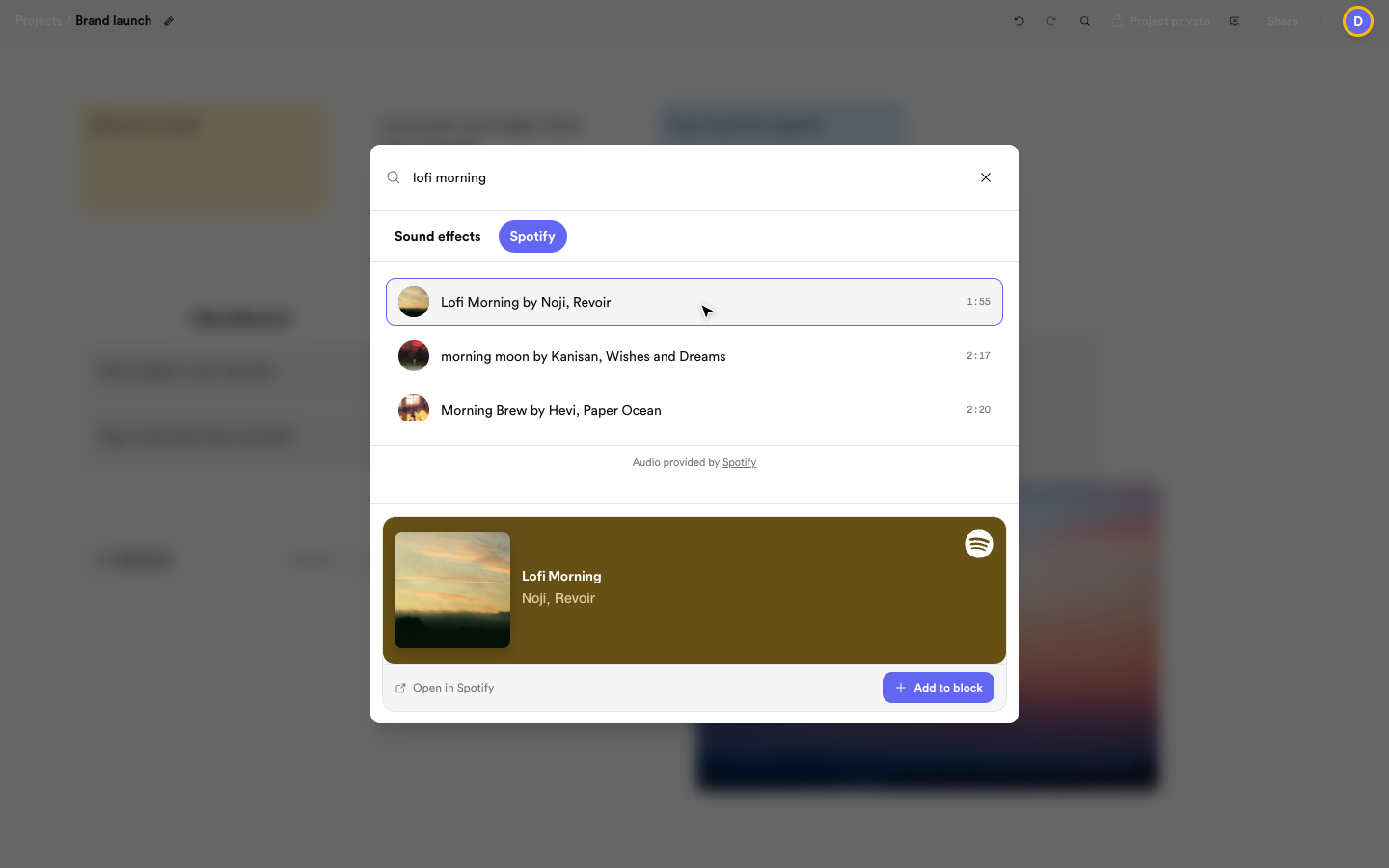 Audition the track in the embedded player, then Add to block
Sound effects via Freesound
Add an audio block and switch to sound effects to search Freesound. Results play in the same shared audio player for preview — listen first, then Add to block.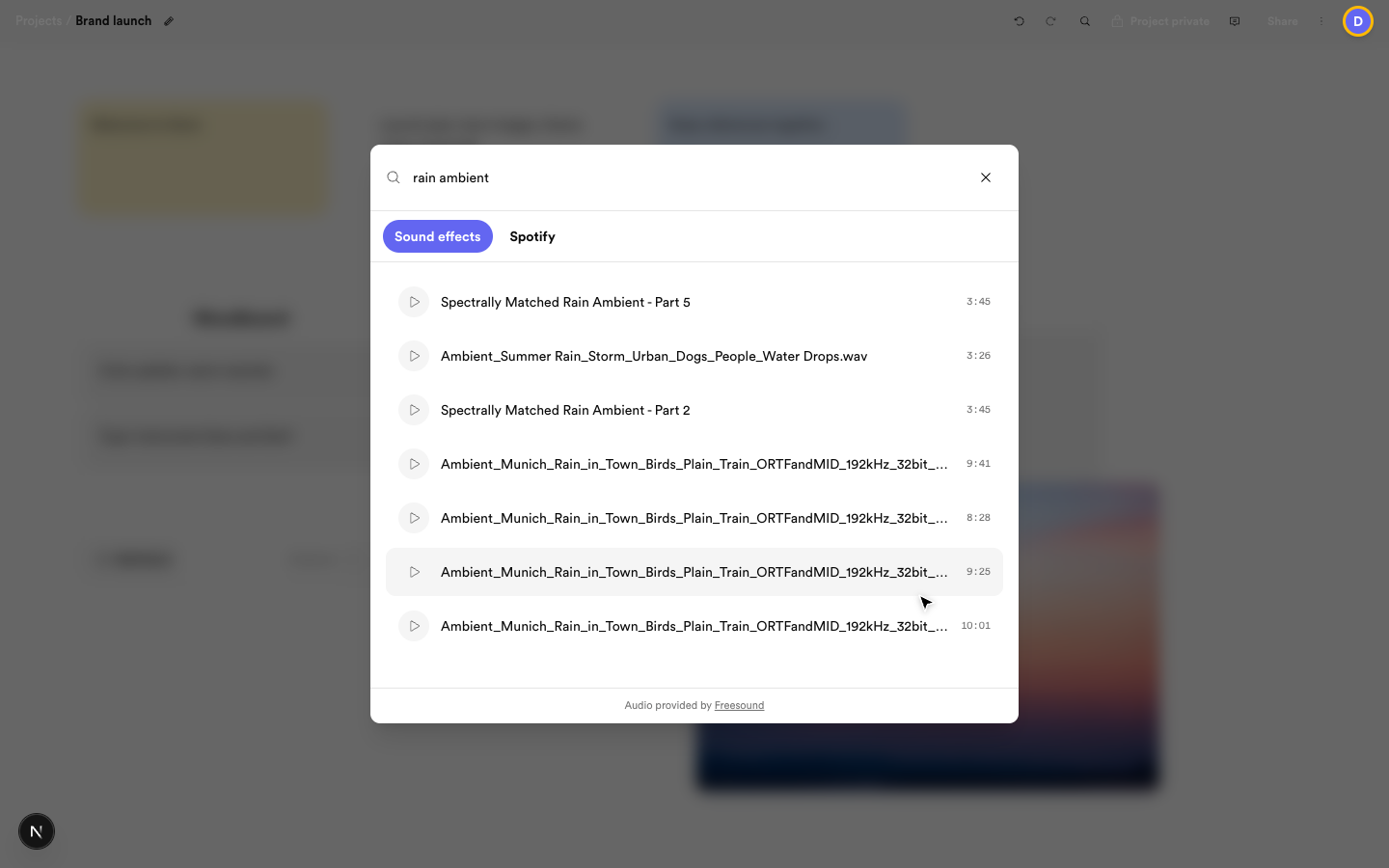 Browse effects with durations and preview before adding
Great for: storyboards that need a door slam or crowd swell, product videos with UI clicks, sketches with ambient texture.
Browse effects with durations and preview before adding
Great for: storyboards that need a door slam or crowd swell, product videos with UI clicks, sketches with ambient texture.
Photos and video via Pexels
Add an image or video block and open stock search to browse Pexels photos and video. Click a result to drop it straight into the block — no download, upload, or tab-switching. Great for: hero-image explorations, reference walls, thumbnails and cover options side by side.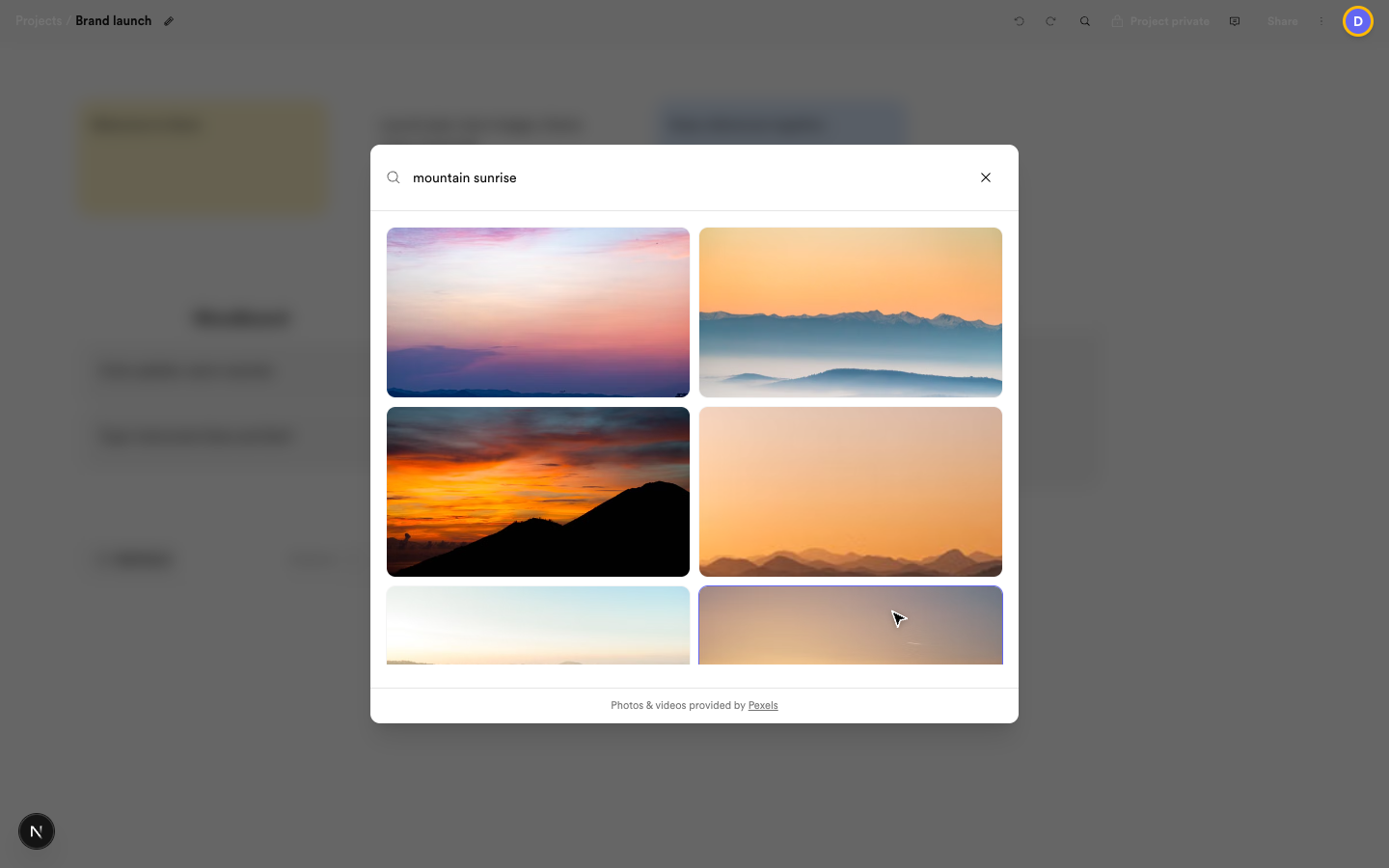 Search Pexels and drop a photo straight into the block
How it works
- Create an image, video, or audio block from the left toolbar.
- Choose search instead of upload or URL. Audio blocks let you pick the source: Spotify for music, Freesound for effects.
- Browse the clickable results list. Audio plays in the preview player first.
- Select Add to block to place it on the canvas.
Tips
- Search from the block itself, not the dashboard — results go straight into that block.
- For audio, audition everything in the preview player before adding; the board keeps the version you chose.
- Pair a Spotify track with notes in a titled composite to keep track, mood, and rationale together.